


The technology tracking database contains information[1] on over 2,000 projects and technologies resulting at least in part from R&D funding from the former EERE Advanced Manufacturing Office (AMO) program. To support growth and the mission, AMO restructured into two separate offices in October 2022 organizing activities between the Advanced Manufacturing and Materials Technologies Office (AMMTO) and the Industrial Efficiency and Decarbonization Office (IEDO).
To access all project information, users must be logged in with the appropriate account credentials which can be requested via the website
This user guide will assist users in navigating through the database and apply data filters to identify projects of interest and the associated data. The user guide topics are as follows:
Contents
Filter by pillar, focus, and sub-program
Search by supporting organization
Landing Home Page and Log in
On the database landing page on the banner there is a “Log In” link, in the top right corner of the header:

Clicking on “Log in” will take you to the log in page:
Here you can enter your assigned “Username”, “Password” and “Log In” or “Reset your password”


Create New Account Screen
New users can click “Create new account” to open a new user form to request access to the database.

Clicking the “Create new account” button submits the new account form to the site administrator for approval.
Logged In Screen
Once you have successfully logged in you will see a page with your user information.

There are 4 links, “Home”, “Projects”, “Organizations” and “Help” just below the Technology Tracking banner.
The purpose of each of these links are as follows:
“Home” – link to landing home page
“Projects” – link to database search by project page (discussed in detail below)
“Organizations” – link to database search by organization page (discussed in detail below)
“Help” – link to help file page
Note: The text search box (red arrow) will search by keyword through the entire database
Projects Page

Clicking the projects link as shown above will take you to the main Projects search page shown below:
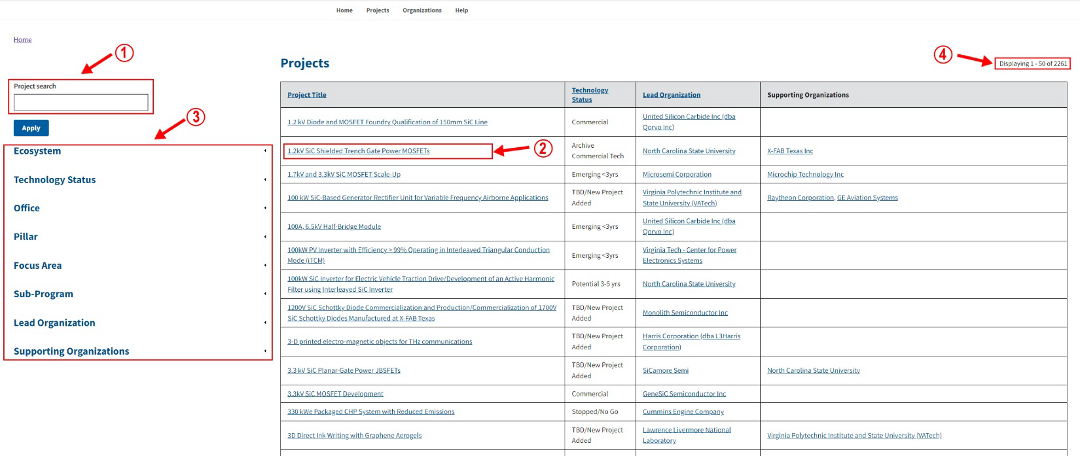
The main project search page displays a table listing project titles and their corresponding technology status, lead organization, and supporting organization (if applicable)
Also, on this page are:
1. Project search
Searches the database according to the following fields:
- Project title – Descriptive title for the technology
- Short title (Tagline) – Short phrase describing what the technology achieves
- Overview – Who is developing the technology and any key project partners. Brief description of current focus/status of technology development
- Application – One or two sentences about where the technology will be used and what the impact of its use will be.
- Description – This section tells the story of how the technology fills a need and describes the situation before this technology, how the technology works and how it solves or improves upon the prior situation from a technology availability/capability standpoint. The description may include how the technology can be used and its advantages, and the future direction of the project/technology development.
- Capabilities – Short bullet points about what the technology Produces, achieves and enables.
2. Project title links
Clicking a project title will take you to the project detail page which will be described in more detail below.
See Selected project detail
3. Search filter options
These options can filter the project database in any combination of:
- Ecosystem
- Technology status
- Funding program office
- Technology pillar, focus area and sub-program (if applicable)
- Lead organization name
- Supporting organization name
4. Project display counter
The counter displays the number of projects resulting from the user selected filters.
Note: Selecting no filters will display the total number of projects in the database.
Search Filter Options

Click the dropdown arrows next to the filter heading to view selectable options and the number of projects in the category. Each additional filter selected will narrow the search, reducing the number of project search results displayed. The filter categories are described below:
Filter by ecosystem
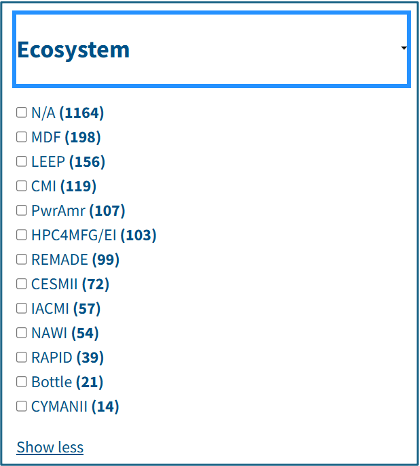
Ecosystems are defined as groups of technologies that are similar or belong to a particular office program like a consortia or similarly funded programs e.g. the Lab-Embedded Entrepreneurship Program (LEEP). It is possible for a technology to belong to multiple ecosystems. The following ecosystems in the database are defined as follows:
Abbreviation | Ecosystem |
N/A | Project to be assigned an ecosystem |
MDF | Manufacturing Demonstration Facility |
LEEP | Lab-Embedded Entrepreneurship Program |
CMI | Critical Materials Institute |
PwrAmr | Power America Consortia |
HPC4MFG/EI | High Performance Computing for Manufacturing/Energy Innovation |
REMADE | Reducing Embodied Energy and Decreasing Emissions |
CESMI | Clean Energy Smart Manufacturing Innovation Institute |
IACMI | Institute for Advanced Composites Manufacturing Innovation |
NAWI | National Alliance for Water Innovation |
RAPID | Rapid Advancement in Process Intensification Deployment (RAPID) Institute |
Bottle | Bio-Optimized Technologies to keep Thermoplastics out of Landfills and the Environment Consortium |
CYMANII | Cybersecurity Manufacturing Innovation Institute |
Filter by technology status
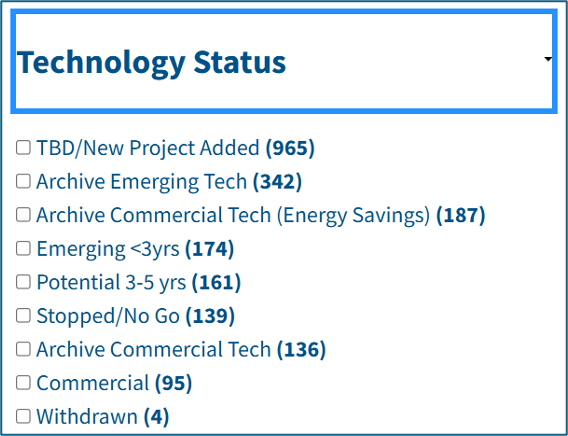
Technology status describes the commercialization, market readiness, and technology development status of a given project as described below.
Status (Designation #) | Description |
Commercial (1) | Technology entered marketplace or is “in-use” |
Emerging (2) | Technology is within 3 years of entering market or deployment |
Potential (3) | Technology is 3-5 years from entering market or deployment |
Stopped/No-Go (4) | Technology development stopped. Technology did not advance past potential status. |
Archive Commercial Technology w/Energy Savings (5) | Technology (with energy savings reported) no longer tracked because either 10-year tracking limit reached, or technology is no longer deployed or available |
Archive Commercial Technology (6) | Technology no longer tracked because either 10-year tracking limit reached, or technology is no longer deployed or available |
Archive Emerging Technology (7) | Technology reported as emerging but is no longer being developed because of technical barriers, market competition or funding issues. |
Withdrawn (8) | Technology/Project no longer tracked at request of POC or DOE sponsor. |
TBD/New Project Added (9) | Technology details yet to be recorded. |
Filter by office
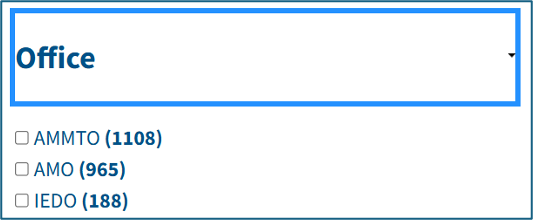
Filter projects by office funding.
Abbreviation | DOE Office |
AMMTO | Advanced Materials & Manufacturing Technologies Office |
IEDO | Industrial Efficiency & Decarbonization |
AMO | Advanced Manufacturing Office (legacy to AMMTO & IEDO) |
More information about the EERE, AMMTO, and IEDO offices can be found here:
AMMTO:https://www.energy.gov/eere/ammto/advanced-materials-manufacturing-technologies-office
IEDO:https://www.energy.gov/eere/iedo/industrial-efficiency-decarbonization-office
The AMO Restructure in October 2022:https://www.energy.gov/eere/amo/about-amo-restructure
Filter by pillar, focus, and sub-program
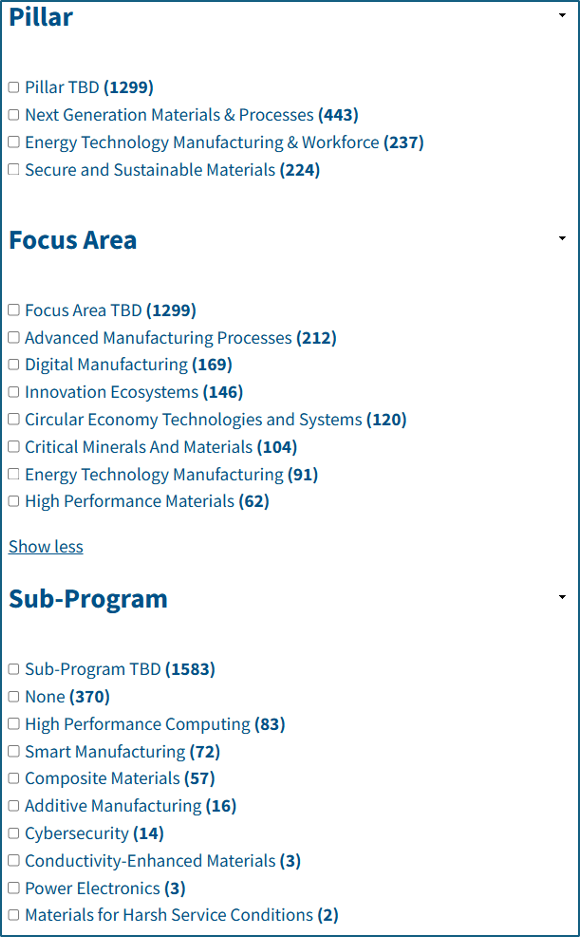
The relationship between pillars, focus areas and sub-programs are described in the table below. The three main pillars are comprised of focus areas, which in turn consist of multiple sub-programs.
Details on the pillars, focus areas and sub-programs can be found on the AMMTO website here:https://www.energy.gov/eere/ammto/ammto-programs
Pillar | Focus Area | Sub-Program |
Next Generation Materials & Processes | High Performance Materials | Composite Materials |
Materials for Harsh Service Conditions | ||
Conductivity-Enhanced Materials | ||
Advanced Manufacturing Processes | Additive Manufacturing | |
Near Net Shape Manufacturing | ||
Roll-to-Roll Manufacturing | ||
Digital Manufacturing | High Performance Computing | |
Smart Manufacturing | ||
Cybersecurity | ||
Secure & Sustainable Materials | Critical Minerals & Materials | N/A |
Circular Economy Technologies and Systems | ||
Energy Technology Manufacturing & Workforce | Energy Technology Manufacturing | Energy Storage and Battery Manufacturing |
Power Electronics | ||
Energy Efficient Microelectronics | ||
Education & Workforce | N/A | |
Innovation Ecosystems | N/A |
Filter by lead organization
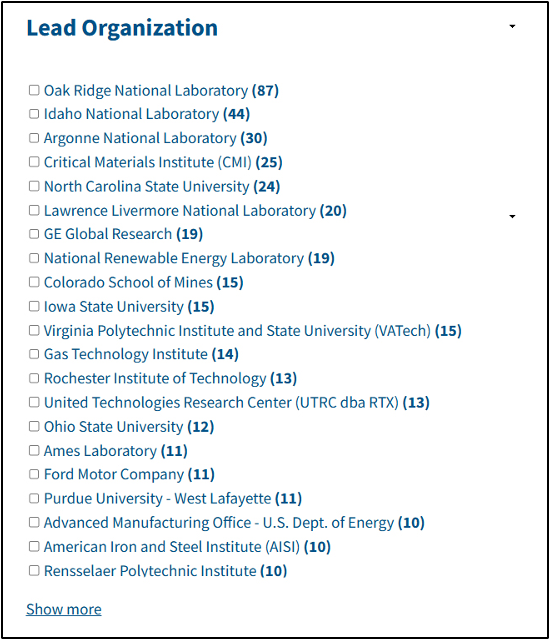
Select and/or filter projects by lead organization.
Note: The value in parenthesis is the number of projects led by an organization.
Search by supporting organization
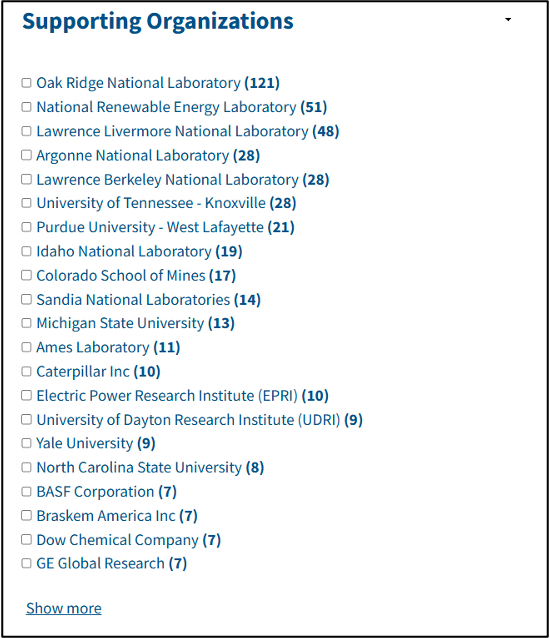
Supporting organizations are collaborators and/or partners in a project.
Note: The value in parenthesis is the number of projects supported by an organization.
Filter by project details
From the home page clicking on the Projects tab brings you to the Projects list page.

An example “Project Detail” Page can be reached clicking on any of the Project Titles, in this case we will use the “1.2kV SiC Shielded Trench Gate Power MOSFETs” link as indicated by the red rectangle above to reach the project detail page shown below.
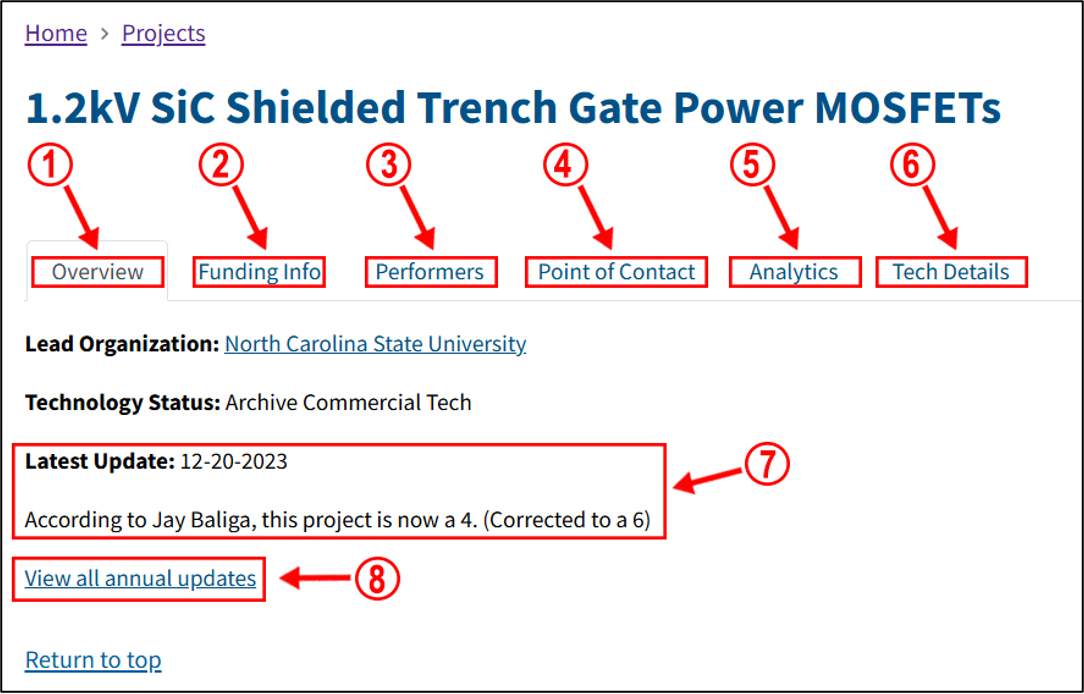
We will now describe the tabs and fields identified in red 1– 8 above.
1. Overview tab
Displays the pertinent project details, including a link to the lead organization, technology status, latest update, and a link to view all the annual updates for the selected project detail.
2. Funding info tab
Clicking a project title will take you to a page displaying the program office that funded the project, including details about the pillar, focus area, and sub-program, as well as the year funded, organization type, and geographic information.

3. Performers tab

The Performer tab contains information about the lead organization and collaborating/partnering organizations on the selected project (if any as well as the organization and contact email for the project’s point of contact.
4. Point of Contact tab
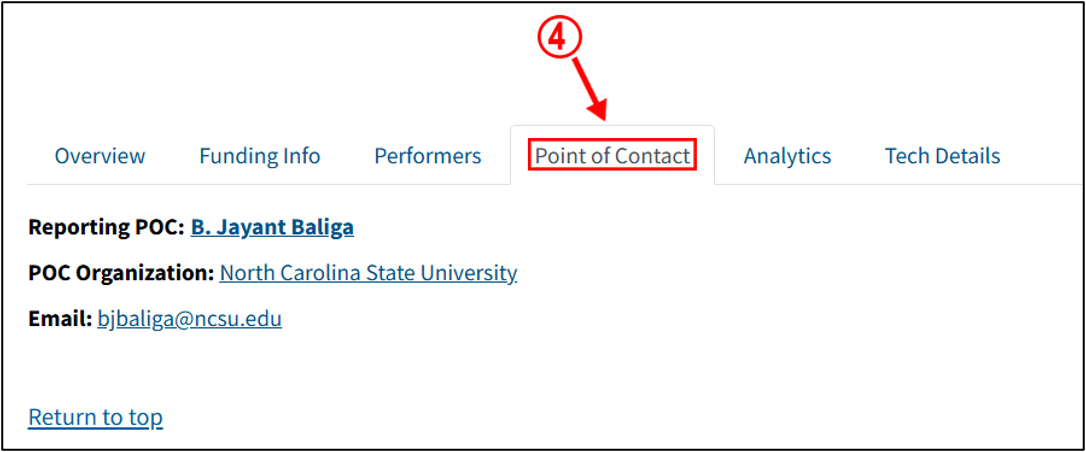
Note: The point of contact for certain pillar projects may be affiliated with a different organization than the lead performer organization, e.g. consortia projects.
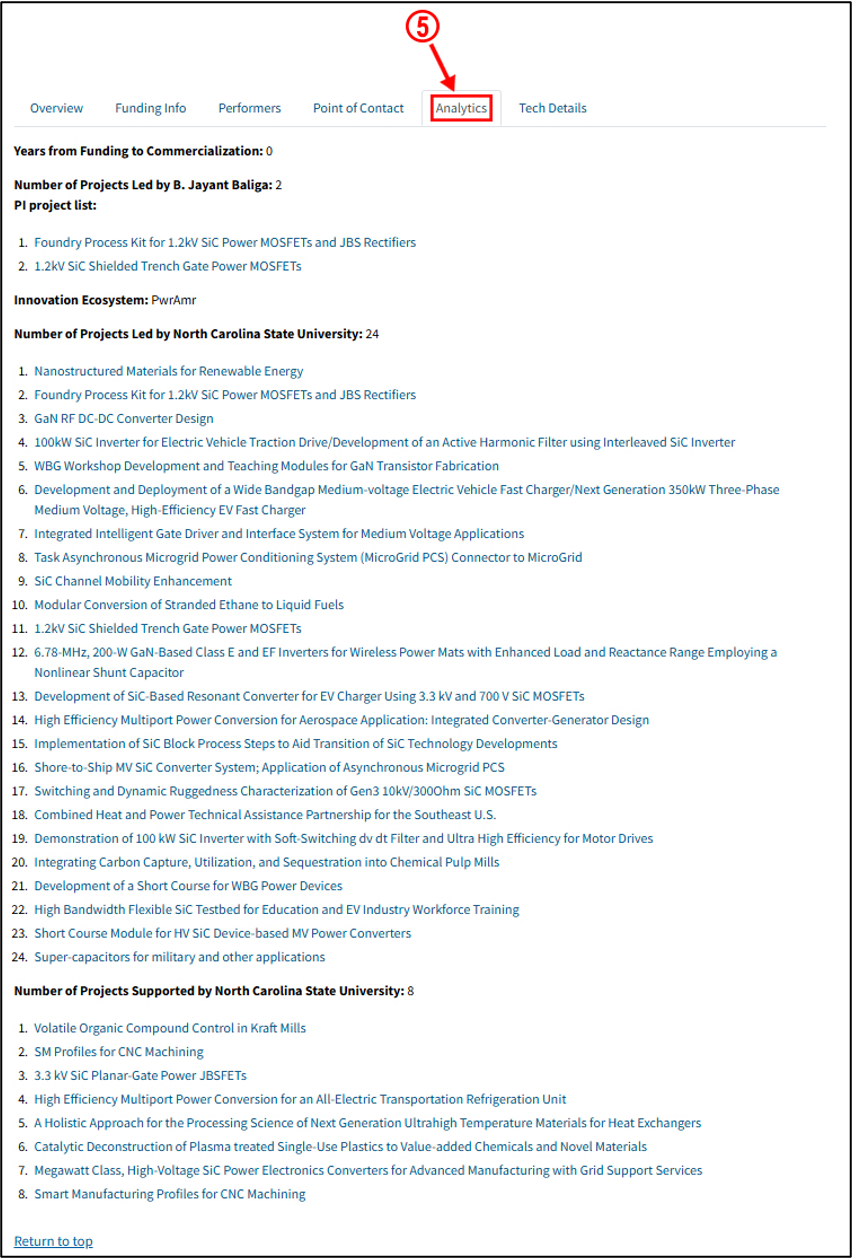
5. Analytics tab
Clicking the Analytics tab displays all the projects the point of contact and lead organization lead, as well as other projects the lead organization supports as a partner/collaborating organization. The tab also lists the years between the initial funding year and the development of a commercial technology, as well as the project’s innovation ecosystem.
6. Tech Details tab
The Tech Details tab lists details about the technology and provides the option to download the tab as a PDF.

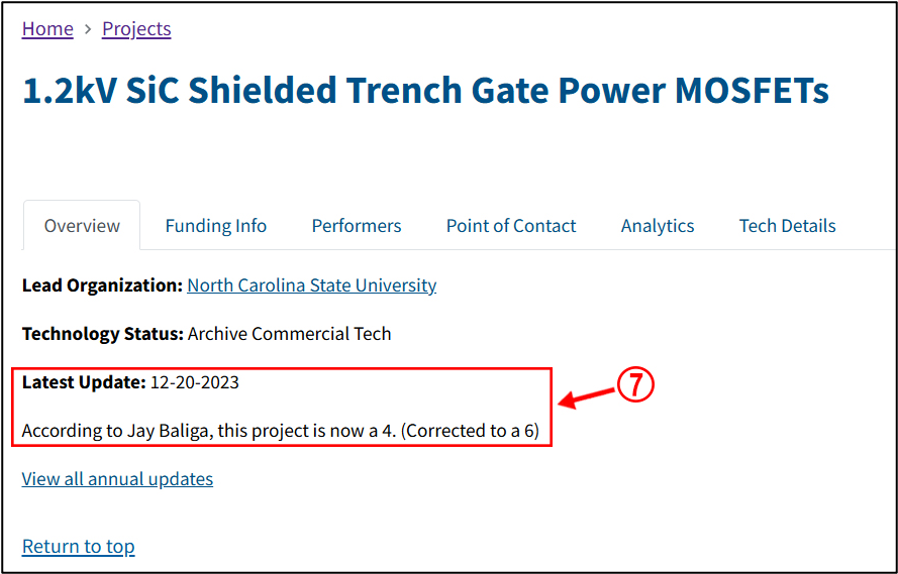
7. Latest Update field
This field displays the date and details of the most recent update from the lead organization point of contact.
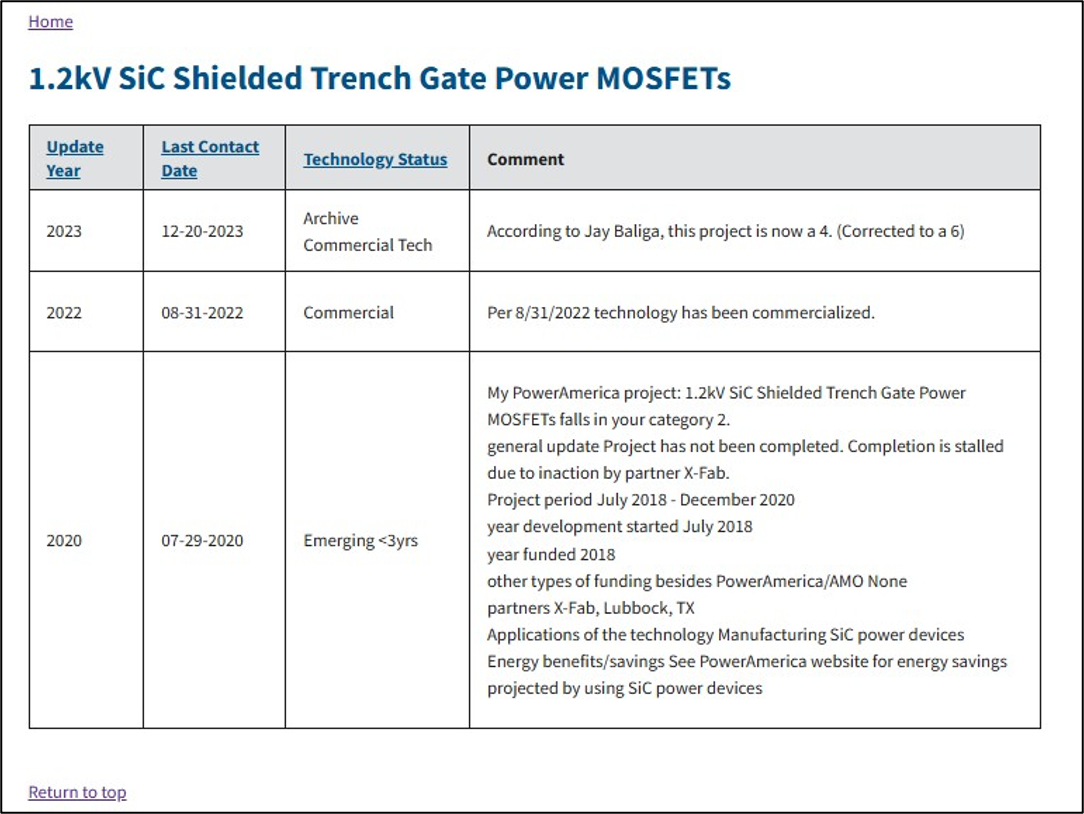
8. View all annual updates link
Clicking the View all annual updates link opens a table of annual technology updates and dates they were received.

Organizations

Click the Organizations header to search by organization name, organization type, and/or organization state.
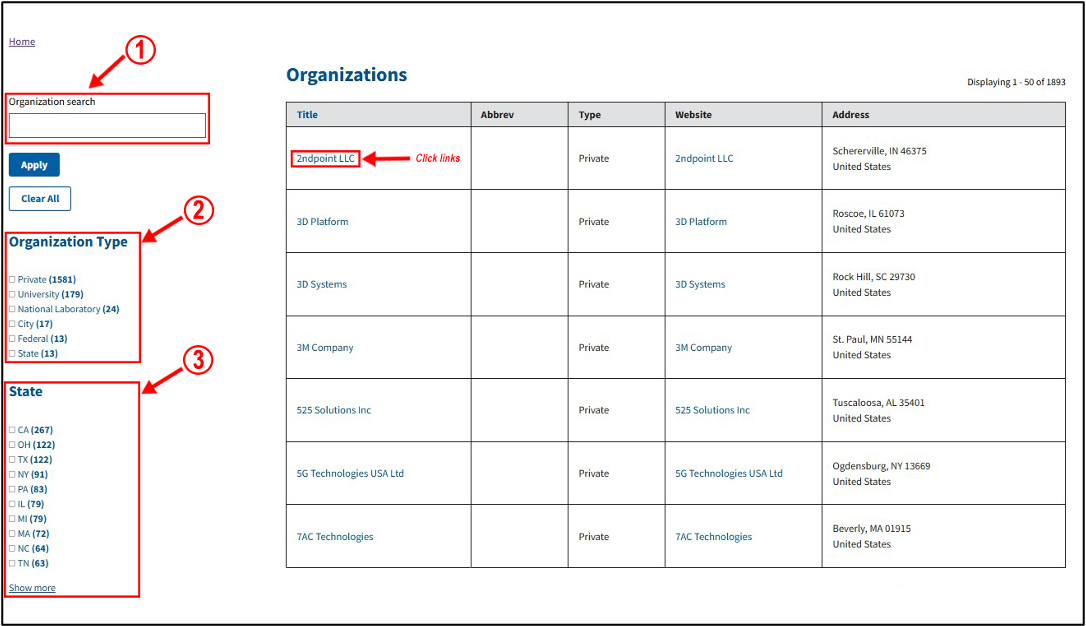
1. Organization search
Search by organization name or abbreviation Fields e.g. GE º General Electric
2. Filter by organization type
3. Filter by organization state
4. Click links
View organization details (e.g. New Mexico State University)
Organizations – detail page

Details include the address, website link and phone number for the organization.
Two tables are displayed showing projects led and projects supported by the organization as a partner/collaborator.
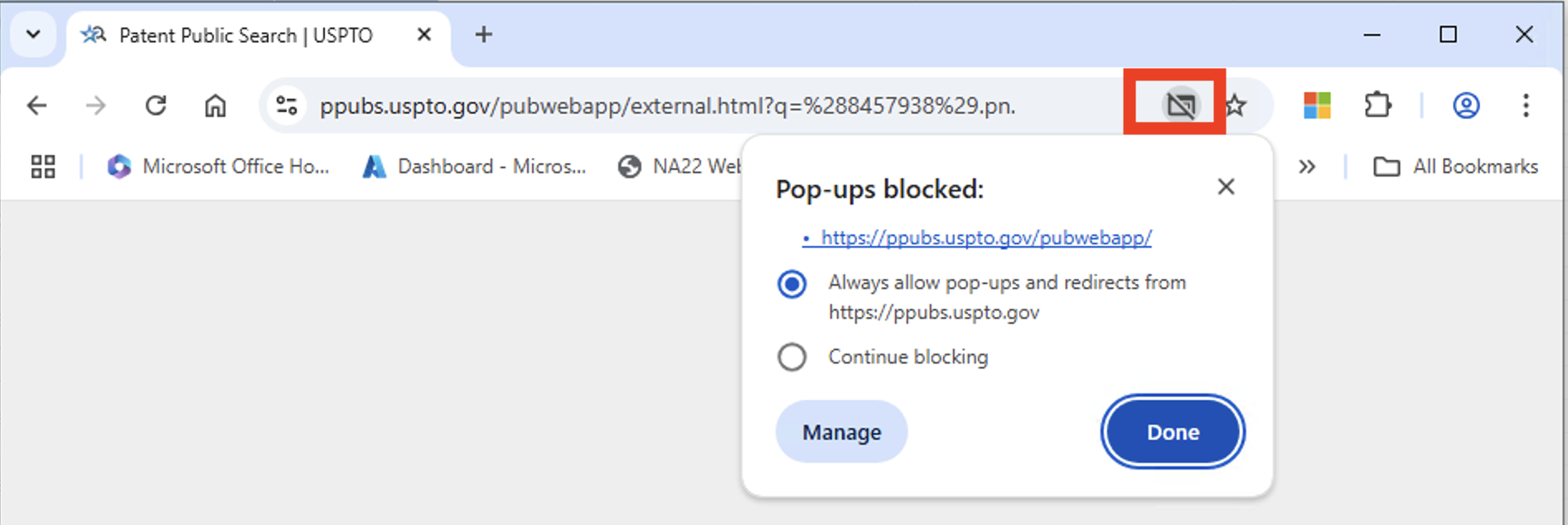
Allow uspto.gov pop-ups
If pop-ups from https://ppubs.uspto.gov/ site were not previously allowed, watch for pop-up icon. Click on icon and select Always allow pop-ups and redirects from https://ppubs.uspto.gov/ and click done. You will need to refresh page for patent to load.
[1] The data collected for this database was/is available publicly and does not contain any business sensitive or confidential information.